
Where the actions live
Once a rule exists, three actions sit in the page header of the rule editor, next to the back arrow: Activate / Deactivate as the primary action, Duplicate, and Delete rule as a secondary action shown only when the rule is not currently active. None of them live inside the form. The Status card is a read-only summary.
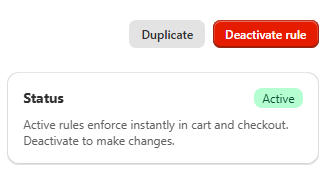
Active rules are locked for editing
An existing rule that is currently Active is read-only. Every field in Conditions, Products, Eligibility, Schedule and Messages is disabled until you deactivate it.
This is intentional. It stops a scope or condition change from silently altering what is blocked at checkout while shoppers are actively hitting that rule mid-flow. The Status card's description says as much: "Active rules enforce instantly in cart and checkout. Deactivate to make changes."
The lock only applies to existing rules. A brand-new rule you are still building stays editable even though it defaults to Active, so you are never blocked from finishing your first save.
Edit a live rule
Open the rule from the Rules list. If it is Active, every field is disabled.
Deactivate it. Click Deactivate rule in the page header. It is styled as a critical action because it stops enforcement immediately. This saves the rule with its status flipped right away.
Make your changes. Every field unlocks once the rule is deactivated.
Reactivate. Click Activate rule in the header. This saves your edits and turns enforcement back on immediately.
Duplicate a rule
Duplicating is the safest way to base a new rule on an existing one, or to test changes without touching a live rule at all.
Open the rule you want to copy and click Duplicate in the page header's secondary actions. This is available whether or not the source rule is active.
You land straight on the new rule's editor. It is named {original name} (copy) and saved as Deactivated, never Active, so duplicating a live rule can never accidentally create a second rule enforcing the same thing at the same time.
Change whatever you need on the copy, then activate it when you are ready. The original is untouched throughout.
Delete a rule
Delete rule only appears in the header once the rule is not currently active. This mirrors the same "deactivate before delete" gating the Rules list's bulk actions use, so a live, enforcing rule cannot be deleted by accident.
Click Delete rule and confirm in the dialog. This is permanent. There is no undo beyond restoring from a prior export.
Common mistakes
Every field is greyed out. The rule is Active. Deactivate it from the header, not by looking for a toggle inside the form.
Delete rule is not showing. The rule is still Active.
A duplicate matches the same products as the original. Expected, since duplication copies every field including the Products scope. Because only one rule governs a product at a time, do not activate both copies over the same products.