
Prime MOQ

Backup and migration

Importing and Exporting Rules

Export your whole rule set to a backup file, and import it back to restore your setup after a reinstall or on a new store.

Prime MOQ Team

Prime MOQ Team

Updated ยท 1 min read

Short answer

Export downloads your entire rule set as a backup file from the Safe Uninstall page. Import restores it from the Rules page, but the Import rules option only appears before you have created your first rule on a store. Exporting before uninstalling is the fastest way to rebuild later.

  • Export lives on the Safe Uninstall page once you have rules.
  • Import only appears on the Rules page before your first rule exists on that store.
  • Accepted import formats are .dpx, .json and .txt.
  • Export before uninstalling. Rebuilding a rule set by hand is the alternative.

Export your rules

You can export from two places:

  • The Rules list, before you have created your first rule, which offers the Import rules button. The export itself happens from Safe Uninstall once rules exist.
  • The Safe Uninstall page, once you have active rules, which offers the Export rules button.
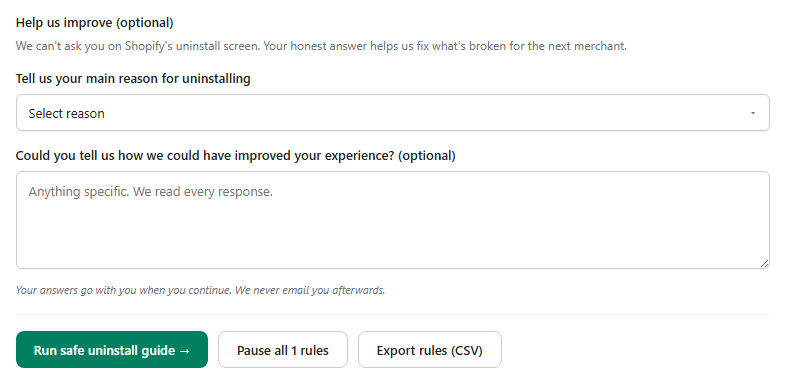
Click Export rules and a file downloads automatically, named something like prime-moq-rules-export.dpx. Keep it somewhere you can find later. It is the fastest way to restore your setup if you uninstall and reinstall, or move to a new store.

Import rules

Go to Rules. The Import rules option only appears before you have created your first rule on this store.

Click Import rules, then drag your exported file into the drop zone or click to browse for it. Accepted formats are .dpx, .json and .txt.

Click the import action. You then see a confirmation of how many rules were imported successfully.

Common mistakes

  • The import option is missing. It only shows up before your first rule exists on a store. Once you have at least one rule, use Create rule.
  • Nothing imported, or "0 rules imported". Check the file is an actual Prime MOQ export and has not been edited or corrupted.
  • Exporting too late. The best moment is right before uninstalling, from the Safe Uninstall page, which prompts you to do it as part of its guided flow.

Frequently asked questions

Where is the export button?

On the Safe Uninstall page, once your store has rules. That page is also where the guided uninstall flow reminds you to export before pausing and removing the app.

Why can I not find the Import rules option?

Because your store already has at least one rule. Import is only offered on a store with no rules yet, so the restore lands into a clean state rather than mixing with existing rules.

Can I import into a store that already has rules?

No. Import is limited to a store with no rules yet. To restore into a store that already has rules, remove the existing ones first, deactivating them before deleting.

What file formats does the import accept?

.dpx, which is what the export produces, plus .json and .txt.

Can I edit the export file by hand before importing it?

It is not designed for that, and an edited or corrupted file typically results in "0 rules imported". Treat the export as a backup artifact rather than a config file.

Do imported rules start enforcing immediately?

Review the imported rules and their statuses before relying on them. After a migration the product scopes point at the new store's catalogue, so check the match counts with Calculate items count before activating.

Best for: Anyone uninstalling, reinstalling, migrating to a new store, or keeping an offline backup.

Applies to: .dpx, .json and .txt export files

Did this answer your question?

Related articles

Still stuck?

Tell us what you are trying to set up and we will reply within 24 hours.

Contact support