
Step 1: Install Prime MOQ
Install Prime MOQ from the Shopify App Store and approve the requested permissions. The app then appears in your Shopify admin under Apps.
Step 2: Activate the app embed
Rules can be saved before this step, but nothing appears to shoppers until the app embed is turned on in your theme.
From the Dashboard checklist, click Activate app embed. That opens Online Store > Themes > Customize on your active theme, at the app embeds panel. You can also get there from Settings > Message position > Edit theme.
Toggle on the Product Price embed, which shows the limit message on product pages, and the cart embed if your theme uses a cart drawer. Click Save in the theme editor. The Dashboard checklist flips this step to Done on its own once the app detects it.
For the full reference, including the app block and which themes are supported, see Activate the App Embed.
Step 3: Create your first rule
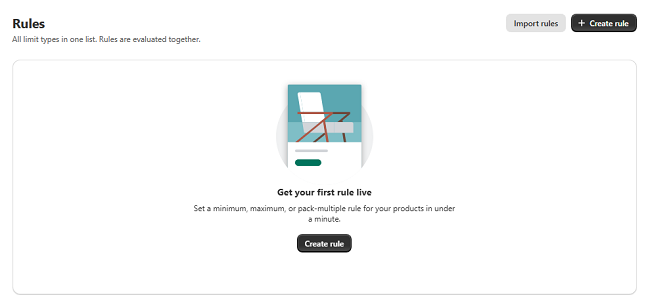
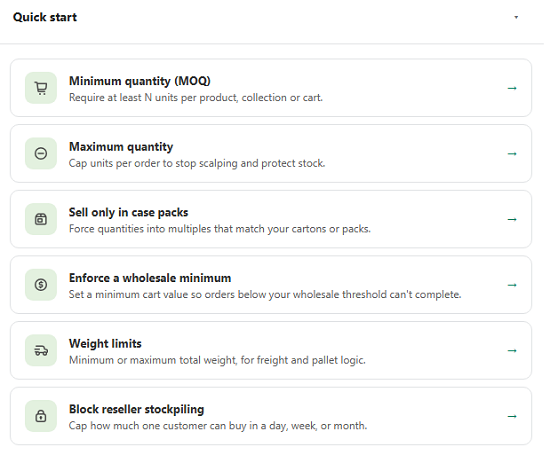
Go to Rules > Create rule. On a brand-new store with no rules yet, the Dashboard and Rules pages also show Quick start tiles, which open a rule already filled in with sensible values.
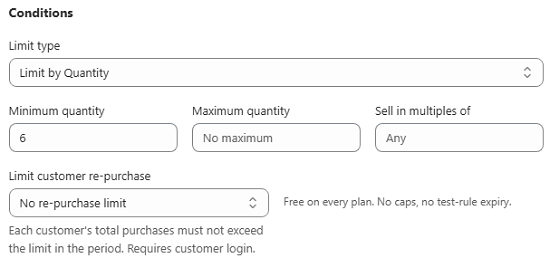
Choose a limit type. In the Conditions card, pick Quantity, Value or Weight, then fill in the minimum, maximum or multiple. If you are not sure which fits, see Which Limit Type Should I Use?.
Choose which products it applies to. In the Products card, select specific products, a collection, a tag, a vendor, a product type, or your whole store.
Save. The rule activates immediately, or at its scheduled start time, and starts enforcing at checkout right away. There is no separate publish action.
Step 4: Verify it works
Check the live preview first. The Preview card in the right-hand column simulates a shopper adjusting the quantity of a sample product and shows the exact message that will appear once the threshold is crossed. It is the fastest way to proofread your wording without leaving the page.
Open your storefront in an incognito tab, or use the Dashboard checklist's Test it on your storefront step, which opens it for you.
Trigger the limit. Open a product covered by your rule and set a quantity that violates it.
Confirm checkout is blocked. Try to proceed to checkout with the invalid cart. Checkout should stop the order and show the same message. That is the Shopify Function enforcing the rule, independently of the storefront message.
If both the product-page message and the checkout block appear, setup is complete. Mark the checklist's final step done.
Where to go next
Explore every limit type so you can match each situation your store has.
Set your default message templates and styling so the message matches your brand.
Read Safe Uninstall before you ever remove the app, so you know what happens to your live rules.