
Why is my rule not blocking checkout?
Work through this in order. It covers the checks in the order they actually catch the problem, most often first.
Check the status badge in the Rules list. Scheduled means the start date has not arrived. Expired means the end date has passed. Deactivated with a tooltip means the rule currently matches zero products. Only Active rules enforce. See Rule Statuses.
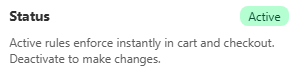
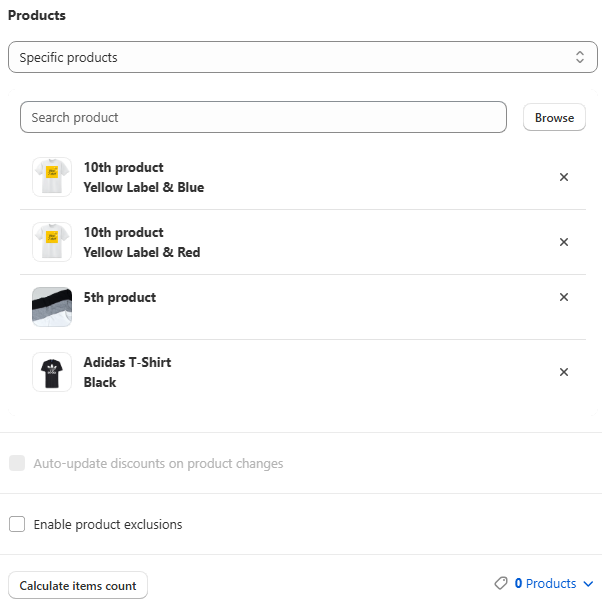
Active Status Check the Products scope includes the product you are testing. Use Calculate items count in the rule editor to confirm your test product is genuinely in scope.
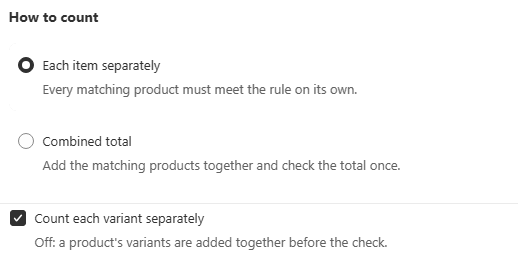
products Check How to count matches your expectation. A "minimum 6" rule set to Each item separately will not block a cart holding 3 plus 3 of two different matching products. That combination only fails under Combined total. See How to Count.
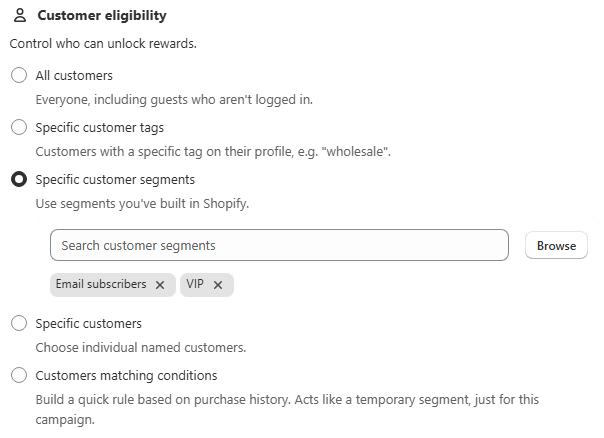
how to count Check Customer eligibility. A rule scoped to a tag, segment or named customers will not trigger for anyone outside that group, including your own test account if it is not tagged the same way.
customers Check Countries. If country restrictions are set, the rule only applies to shoppers checking out from those countries.
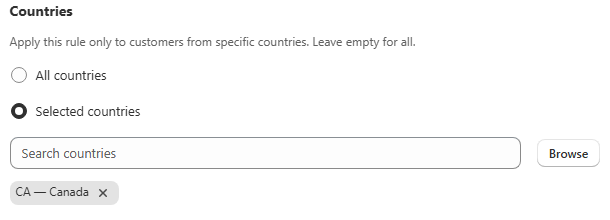
Country Remember the message and the enforcement are separate. Even if the message is not visible, checkout enforcement runs independently. Always confirm by actually attempting checkout with an invalid cart, not by looking at the product page.
Why can I not edit my rule's fields?
If every field is greyed out, the rule is currently Active. Existing active rules are locked on purpose, so a scope or condition change cannot silently alter what is blocked while shoppers are hitting it. Click Deactivate rule in the page header, make your changes, then reactivate. See Editing, Duplicating and Deleting a Rule.
Why is the limit message not showing on my product page?
This is almost always a storefront setup issue rather than a rule configuration one.
Confirm the app embed is enabled in your theme editor, through Settings > Message position > Edit theme, or Online Store > Themes > Customize > App embeds. This is by far the most common cause.
Confirm your theme supports Online Store 2.0 app embeds. Legacy pre-2.0 themes do not support app embeds or app blocks at all.
If you are using an app block instead, confirm it was actually added to the section and template you are viewing. App blocks are placed per template, unlike the embed which applies automatically.
Confirm the rule is Active and matches the product. A message never shows for a product with no matching active rule.
Test in an incognito tab. Some themes cache admin and preview sessions in a way that hides live storefront elements.
Why did my rule start or stop enforcing unexpectedly?
Check the Schedule card. A rule with a future start date shows as Scheduled and only begins at that time. A rule with a past end date shows as Expired and stops on its own.
Check whether the product scope changed. With the auto-update toggle on, new products matching your scope get pulled in over time, so a rule can start applying to products it did not originally cover.
Check whether someone deactivated it. The Deactivate rule action in the page header takes effect immediately.
My rule shows "Calculating"
That is a normal, temporary loading state, not an error. Saving a rule, or a bulk activate or deactivate, triggers a background job that resolves the exact list of matching products and variants. The Rules list polls automatically and updates within a few seconds. No action needed.
A weight-based rule is not triggering
Check that every product in scope has a weight set on the product or variant in Shopify. A product with no weight, or a weight of 0, contributes nothing to the total, which can make a genuinely heavy cart pass a maximum-weight check. See Weight-Based Order Limits.
A repurchase limit is not blocking a repeat order
Confirm the customer was logged in for both the original and the repeat order. Repurchase checks rely on account purchase history and cannot be evaluated for guest checkouts. See Repurchase Limits.
Still stuck?
Reach out from the Need help? card on any rule editor page, or contact support directly. We are glad to dig into a specific rule with you.