
The four statuses
A rule's badge in the Rules list reflects whether it is actually enforcing right now, which can differ from what you last set it to. Prime MOQ computes this effective status by combining the saved status, the schedule, and whether the rule currently matches any products.
Badge | Meaning |
|---|---|
Active (green) | Enforcing at checkout right now |
Scheduled (blue) | Set to Active, but the start date has not arrived |
Expired | Set to Active, but the end date has passed |
Deactivated | Manually deactivated, or matching zero products |
The Deactivated label was renamed from "Paused" for clarity. Same meaning, same badge, clearer wording about what happened to the rule.
Why a rule shows Deactivated even though you set it to Active
A rule saved as Active but currently matching zero products, because of an empty scope or a collection that has not been populated yet, is never actually enforced at checkout no matter what its saved status says.
The Rules list shows this case as Deactivated with a tooltip explaining why, instead of a misleading green badge on a rule that is doing nothing. Fix it by widening the Products scope, or by adding products to the collection, tag or vendor it targets.
"Calculating" is a loading state, not a status
Right after saving a rule, or after a bulk activate or deactivate, a row may briefly show Calculating instead of a badge. A background job is still resolving the rule's exact matching product and variant count. It resolves within a few seconds, and the Rules list polls in the background and updates the row without a page refresh.
The Activate and Deactivate button is in the page header
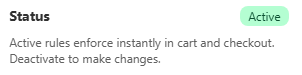
Activating or deactivating a rule is a single click at the top of the rule editor page, next to the back arrow, not inside the Status card. The Status card is read-only: it shows the current badge and a one-line explanation for an at-a-glance check while you scroll.
On an existing rule, the page's primary action is always Activate rule or Deactivate rule, whichever direction applies. The click saves the whole rule immediately with its status flipped, so any other unsaved edit on the page is saved along with the status change rather than silently lost.
See Editing, Duplicating and Deleting a Rule for the full walkthrough, including why an active rule's fields are locked until you deactivate it.
Bulk status changes
From the Rules list, select several rules to reveal bulk Activate and Deactivate actions.
Including an already-active rule in the selection disables Activate, since there is nothing to activate, but keeps Deactivate available.
activestatus Once every selected rule is deactivated, Activate becomes available again and Deactivate disables.
Delete is only available when none of the selected rules are active. Deactivate first.