
What it does
By default a rule activates the moment you save it and runs indefinitely. The Schedule card instead sets a future start date, an end date, or both. It is useful for limited drops, seasonal weight caps, and a wholesale minimum that only kicks in after a trial period.
Goal | Setup |
|---|---|
Start a limit at a future date | Enable schedule, set a start date and time |
Remove a limit automatically after a period | Enable schedule, set an end date |
Run a limit only during a window | Set both a start and an end date |
Schedule a rule
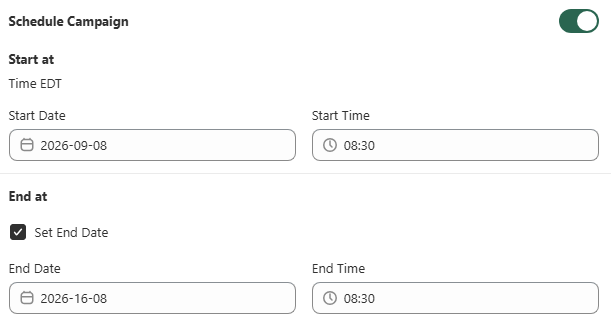
Open the Schedule card in the rule editor and toggle it on.
Set a start date. Pick the date and time the rule should begin enforcing. Times are shown in your store's timezone.
Set an end date, optionally. Check Set end date and pick when the rule should stop enforcing. Left unchecked, the rule runs indefinitely once started.
Save. Until the start date arrives the rule shows as Scheduled in the Rules list rather than Active.
How scheduled rules show up

The Rules list reflects a rule's effective status, not just what you set it to.
Badge | Meaning |
|---|---|
Active | Enforcing right now |
Scheduled | Set to Active, but the start date has not arrived |
Expired | Set to Active, but the end date has passed |
Deactivated | Manually deactivated, or matching zero products |
See Rule Statuses Explained for the full breakdown.
Common mistakes
The rule does not enforce even though Active was selected. Check the badge. A future start date shows as Scheduled until that time arrives.
The rule stopped enforcing unexpectedly. Check whether an end date passed. It shows as Expired rather than being deleted, so it can be extended.
Timezone confusion. The start and end times use your store's configured timezone, which may differ from your browser's local time.