
Prime MOQ

Targeting Products, The Complete Scope Reference

Every scope option in the Products card, plus exclusions, auto-update for new products, and how to check exactly what a rule matches before you save.

Prime MOQ Team

Prime MOQ Team

Updated ยท 2 min read

Short answer

The Products card decides which items in your catalogue a rule applies to. Every rule takes exactly one scope selection: specific products, collections, product tags, vendors, product types, all store, or the plan-gated price range and variant metafield options. An optional exclusion list can be layered on top.

  • One scope per rule, with an optional exclusion scope layered over it.
  • The on-the-fly toggle keeps the rule matching products you add to your catalogue later.
  • Calculate items count shows exactly what matches before you save.
  • A rule matching zero products is saved but never enforced, and shows as Deactivated.

Every scope option

The Products card decides which items in your catalogue a rule applies to. Every rule needs exactly one scope selection, with an optional exclusion list layered on top.
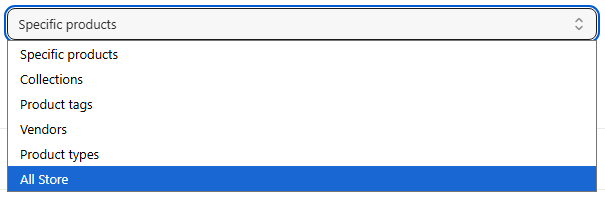
OptionMatches
Specific productsOne or more products you pick individually
CollectionsAll products in one or more collections
Product tagsAll products carrying one or more tags
VendorsAll products from one or more vendors
Product typesAll products of one or more product types
All storeEvery product in the catalogue
Price range (plan-gated)Products whose price falls inside a range you set
Variant metafield rule (plan-gated)Products matched by a variant metafield condition

Price range and variant metafield rule may appear as Upgrade required depending on your plan. They stay visible rather than disappearing, so you can see the capability exists. See Plans and Pricing.

Set the scope

Pick the scope type. In the Products card, choose the option that matches how you actually think about the products this rule covers.

Pick the products, collections or tags. Use the resource picker, or the tag, vendor and type inputs, to choose exactly what matches.

Turn on auto-update, optionally. Enable the on-the-fly toggle so products added to your store later that match this scope, such as a new product in the same collection, are covered automatically without editing the rule.

Add exclusions, optionally. Check Enable product exclusions, then pick a second scope of any type except All store for products that should be carved out even though they would otherwise match. Useful for a collection-wide rule with one or two SKUs that need an exemption.

Calculate items count. Click Calculate items count to see exactly how many products and variants currently match your scope and exclusions, before saving.

Save. Saving triggers a background job that resolves the exact product and variant list. The Rules list shows a brief "Calculating" state while that finishes.

Only one rule per product

By design a product can be governed by only one rule at a time, and there is no manual conflict-resolution step to configure. See Why Only One Rule Applies Per Product.

Common mistakes

  • New products are not picked up. Turn on the auto-update, "on the fly", toggle so future catalogue additions are matched without editing the rule.
  • Excluded products still seem affected. Exclusions only work against the current scope's own matches. Check the exclusion scope type and selection are correct, not just enabled.
  • Calculate items count shows 0. A zero-match rule is saved but never enforced, and shows as Deactivated. Check the scope really includes live products.

Frequently asked questions

Can one rule apply to more than one collection?

Yes. The Collections scope accepts several collections at once, and every product in any of them matches. The same applies to tags, vendors and product types.

Will a rule cover products I add to a collection later?

Only if you enable the on-the-fly toggle. Without it, the rule keeps the product list resolved at save time, and a product added to the collection afterwards is not covered until you edit and re-save the rule.

How do I exempt a few products from a collection-wide rule?

Check Enable product exclusions and pick those products as the exclusion scope. The rule then matches the collection minus the exclusions. The exclusion scope can be any type except All store.

What does "Calculating" mean in the Rules list?

A background job is resolving how many products and variants match. It settles within a few seconds and the list updates itself without a page refresh.

Why does my rule show Deactivated when I set it to Active?

Because it currently matches zero products. A rule with an empty scope, or a collection with nothing in it yet, is never enforced at checkout, so the list shows Deactivated with a tooltip rather than a misleading green badge.

Can two rules cover overlapping product scopes?

They can be saved that way, but only one rule governs any given product at checkout. Overlapping active scopes make it unclear which one wins, so keep live scopes distinct and use Customer eligibility when you need different treatment for different groups.

Best for: Anyone whose rule is applying to the wrong products, or to none at all.

Applies to: All limit types

Did this answer your question?

Related articles

Still stuck?

Tell us what you are trying to set up and we will reply within 24 hours.

Contact support