
Prime MOQ

How Prime MOQ Enforces Limits at Checkout

Enforcement is a Shopify Function running inside checkout validation, not storefront JavaScript. Here is what that means for what can and cannot be bypassed.

Prime MOQ Team

Prime MOQ Team

Updated ยท 2 min read

Short answer

Prime MOQ rules are enforced by a Shopify Function that runs as part of Shopify's own checkout validation, for every eligible cart. That is why a customer cannot get around a limit by disabling JavaScript, editing the DOM, or using a direct checkout link. The storefront message is a separate, purely informational layer.

  • Two layers: a storefront message that warns, and a checkout Function that blocks.
  • Turning off the app embed hides the warning. It does not disable enforcement.
  • There is no warning-only mode. An active rule always blocks when its condition fails.
  • To stop enforcement temporarily, deactivate the rule.

The two layers

Prime MOQ's rules are not just a storefront message. They are enforced by a Shopify Function that runs as part of Shopify's own checkout validation, always on, for every eligible cart.

LayerWhat it doesCan it be bypassed by disabling it?
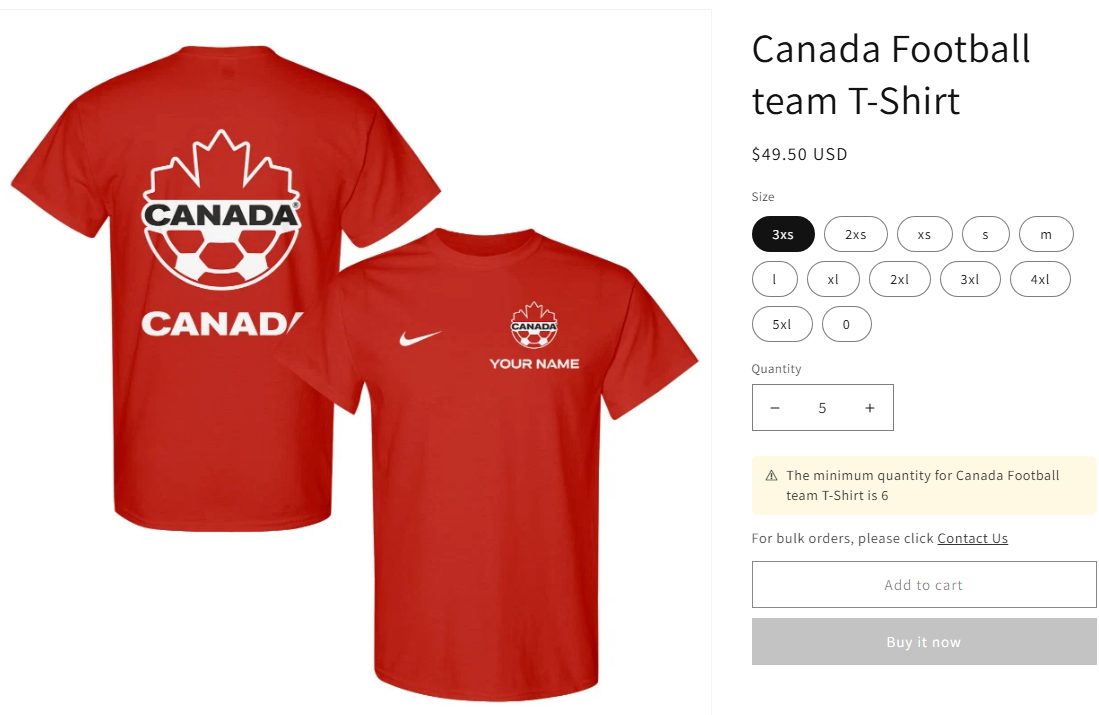
Storefront message (app embed or app block)Warns the shopper before checkout, on the product page and cartYes, it is only UI. Turning off the app embed hides the warning, it does not disable enforcement.
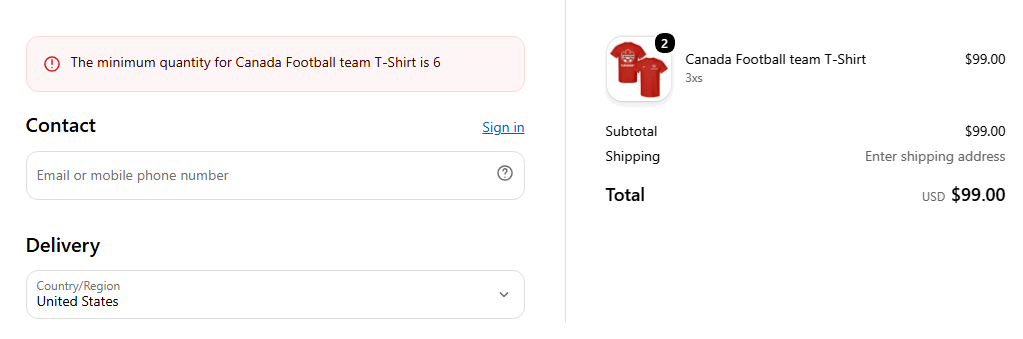
Checkout FunctionActually blocks the order at checkout when conditions are not metNo. It runs server side inside Shopify's checkout, independently of the theme.

This split matters. A merchant who accidentally leaves the app embed off still has working enforcement, just without the friendly warning. Customers would be blocked at checkout with no explanation shown earlier on the product page, which is why the app embed is worth enabling.
What actually gets checked

When a rule is saved and active, its conditions (quantity, value and weight thresholds, plus any repurchase period), its how-to-count mode, its products scope and its customer eligibility are all resolved into a checkout validation.

At checkout, the Function evaluates the current cart against every rule that matches at least one line item, and rejects the checkout with your configured message if any rule's condition fails.
Product page, cart and checkout

WhereWhat shows
Product pageThe limit message appears near the Add to cart button once a blocked quantity is set, before the item is even added
CartThe same message can appear if the cart drawer embed is enabled and the cart violates a rule
CheckoutThe order is actually rejected. This is the layer that cannot be skipped.

Why "always on" matters

There is no setting to make enforcement optional, soft, or warning-only. An Active rule always blocks checkout when its conditions fail. To stop a rule enforcing temporarily, deactivate it or delete it, rather than looking for a bypass toggle that does not exist.

Frequently asked questions

Can a customer bypass the limit by disabling JavaScript?

No. Disabling JavaScript only removes the storefront warning. The block itself runs in Shopify's checkout, server side, so the order is still rejected.

Does a direct checkout link skip the rule?

No. The Function runs as part of checkout validation regardless of how the shopper arrived, so a permalink or a direct checkout URL hits the same check.

If I turn off the app embed, do my rules stop working?

No, and this catches merchants out in the other direction. Rules keep blocking orders, but shoppers get no explanation until checkout. Keep the embed on so the block is explained early.

Is there a warning-only mode that does not block?

No. An Active rule always blocks when its condition fails. If you want a rule to stop enforcing, deactivate it.

Does enforcement work on both retail and B2B checkouts?

Yes. The same rule logic applies to both, which is one of the differences from Shopify's native quantity rules.

What happens to a cart that was already below the minimum before I created the rule?

It is evaluated at checkout like any other, so it is blocked at that point with the message explaining why. Rules are not applied retroactively to orders that have already been placed.

Best for: Understanding what a shopper actually experiences, and what a determined one cannot get around.

Applies to: Shopify checkout, Retail and B2B checkouts

Did this answer your question?

Related articles

Still stuck?

Tell us what you are trying to set up and we will reply within 24 hours.

Contact support