
What it controls
The Messages card on the rule editor sets the exact text shown to a shopper when their cart does not meet the rule: one message for the minimum condition, one for the maximum, per language your store supports.
Placeholders
The built-in default text uses placeholders that are filled in automatically.
Bucket | Minimum message default | Maximum message default |
|---|---|---|
Quantity |
|
|
Value |
|
|
Weight |
|
|
You can rewrite the message entirely in your own voice. Placeholders are optional, not required.
Customize a rule's message
Open the Messages card in the rule editor.
Pick the language. If your store publishes several languages, use the language tabs to choose which one you are editing. The primary language is shown first.
Edit the minimum or maximum message. Type your wording into Minimum limit message or Maximum limit message. An empty field is pre-filled with your shop's default template for that language and limit type as real, editable text rather than a greyed-out placeholder, so you are editing rather than starting from a blank box.
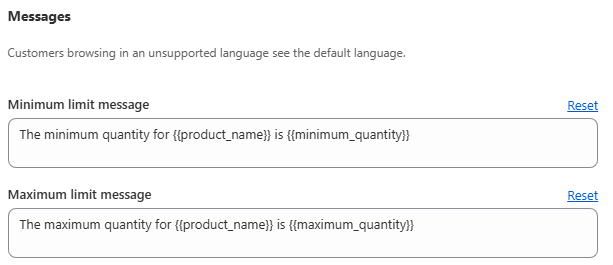
Reset if needed. Click Reset next to either field to discard your edit and revert to the shop's saved default for that language and bucket.
Save the rule.
Why leaving a field truly empty is a bad idea
If a message field is saved genuinely empty, rather than showing the default as placeholder text, the checkout enforcement and the product-page widget fall back to their own generic hardcoded message instead of your templated one. That is a silent mismatch between what you saw in the admin and what shoppers see.
In practice this rarely happens, because empty fields auto-fill with the effective default the moment you focus a language and bucket. If you deliberately clear a field, be aware it will not stay visually blank at checkout.
Unsupported languages
A shopper browsing in a language your store has not published a translation for sees the message in your store's default language.
Common mistakes
The message does not match what you typed. Check you edited the correct language tab. Each language has independent text.
A placeholder shows literally as
{{minimum_quantity}}. The raw template text was pasted in manually. Edit through the Messages card rather than pasting exported text from elsewhere.Retyping the same wording on every rule. Set it once as a shop-level default instead. See Default Message Templates.