
What it does
A minimum quantity rule blocks checkout unless a shopper's cart includes at least a set number of units of the products the rule applies to. This is the classic MOQ, and the quick-start template for it is labelled Minimum quantity (MOQ).
Goal | Example |
|---|---|
Protect margin on low-priced items | Require at least 6 units so fees and packaging do not eat the profit |
Enforce a supplier-style minimum | "This item is only sold in orders of 12 or more" |
Push average order value up | Set a small minimum, such as 2, across the whole store |
How it is enforced
The rule compares the quantity of matching products in the cart against Minimum quantity. If the cart holds fewer units, checkout is blocked and the shopper sees your Minimum limit message.
What counts as "matching products" (each product on its own, or all matching products added together) is controlled separately, in How to count.
Create the rule
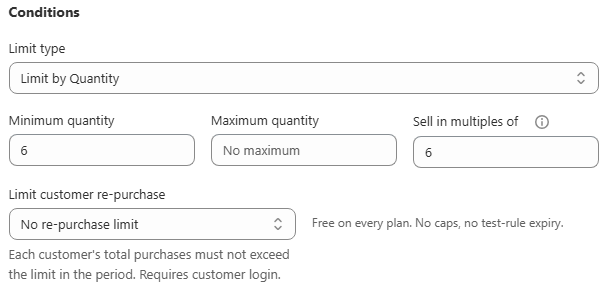
Start from the quick-start tile, or from scratch. On the Dashboard or Rules page, before you have any rules, the Minimum quantity (MOQ) tile opens a rule pre-filled with a minimum of 6. Otherwise go to Rules > Create rule, name it, and set Limit type to Quantity in the Conditions card.
Set the minimum. Enter your number in Minimum quantity. Leave Maximum quantity and Sell in multiples of blank unless you need them too.
Choose how to count. If the rule covers several products, decide whether each product must independently meet the minimum (Each item separately) or whether the shopper can mix products to reach the total (Combined total).
Choose applied products. In the Products card, scope the rule to specific products, a collection, tag, vendor, product type, or your entire store.
Write the message, optionally. In Messages, customise the Minimum limit message shown when the cart falls short, or leave it to use your shop's default template.
Save. The rule enforces immediately.
Verify it works
Cart | Expected result |
|---|---|
1 unit, below a minimum of 6 | Blocked, limit message shown, checkout stopped |
6 units | Allowed |
6 units with one from a non-matching product | Only the matching units count toward the minimum |
In the rule editor's Preview card, drag the quantity stepper below your minimum and confirm the warning reads correctly. Then add fewer than the minimum to a cart on the live storefront and confirm both that the message appears on the product page and that checkout is genuinely blocked, not just warned about.
Common mistakes
Nothing blocks at checkout even though the rule is Active. Check that the product scope really includes the product you are testing, and that it matches at least one product. A zero-match rule is never enforced.
The minimum applies across several different products when you wanted it per product. Set How to count to Each item separately, not Combined total.
The message does not show on the product page. The app embed is most likely not enabled yet.