
What it does
A typed maximum is a guess about stock you had when you typed it. Stock-aware maximum replaces the guess with the number.
The card sits below Conditions on every rule. On a Quantity rule it is called Stock-aware maximum, and on a Value or Weight rule it is called Stock-aware availability, because the thing it protects there is whether the product can be bought at all rather than how many units.
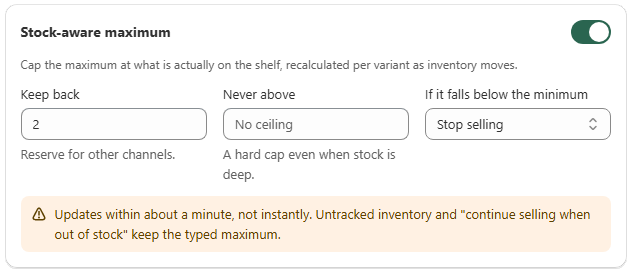
Field | Shown for | What it does |
|---|---|---|
Enable | All limit types | Turns stock awareness on for this rule |
Keep back | All limit types | Units reserved for other channels before anything is available to this rule |
Never above | Quantity only | A hard ceiling even when stock is deep |
If it falls below the minimum | Quantity only | Stop selling, the default, or ignore the minimum |
How the number is worked out
Prime MOQ sums your tracked inventory across the locations Shopify marks as fulfilling online orders, subtracts Keep back, and uses what remains.
If the result is zero or less, the variant stops selling under this rule. That applies to every limit type, not only Quantity.
On a Quantity rule, the result becomes the maximum, capped further by Never above if you set one. Whichever is stricter between this and your typed maximum is what enforces.
On a Value or Weight rule, a healthy stock level leaves your typed maximum alone. Keep back only matters once stock is low enough to threaten it.
The calculation runs on real inventory changes, with roughly a minute of lag, plus a nightly pass as a safety net. The result is written into the same rule data the Shopify Function reads at checkout, so checkout is not making a live inventory lookup on every cart. That is what keeps it fast, and it is also why the lag exists.
Turn it on
Set the rule's normal Conditions first, limit type and bounds, as usual. See Maximum order quantity.
Scroll to the Stock-aware card and turn it on.
Set Keep back to whatever you want reserved for other channels, or 0 if none.
On a Quantity rule, optionally set Never above as a hard ceiling, and choose what happens if the calculated maximum would fall below the rule's own minimum: stop selling, or ignore the minimum.
Save, then check a product on your live storefront rather than in Preview.
Common mistakes
Keep back at or above your actual stock. The variant stops selling under this rule entirely, for any limit type. Check your real stock before setting it.
Expecting Preview to show the capped number. Preview always simulates your typed value. The storefront is where the stock-adjusted number appears. See Preview a rule before publishing.
Expecting instant updates. A sale or a restock takes about a minute to reach the capped maximum.
A variant that does not track inventory. The feature has nothing to read, so it is skipped and your typed maximum applies unchanged.
The toggle is on but nothing changes. A store connected before this feature shipped may need to grant Prime MOQ renewed permission to read locations and inventory. Reconnecting the app resolves it, and there is no error message for this case, so it is worth ruling out early.