
What it shows
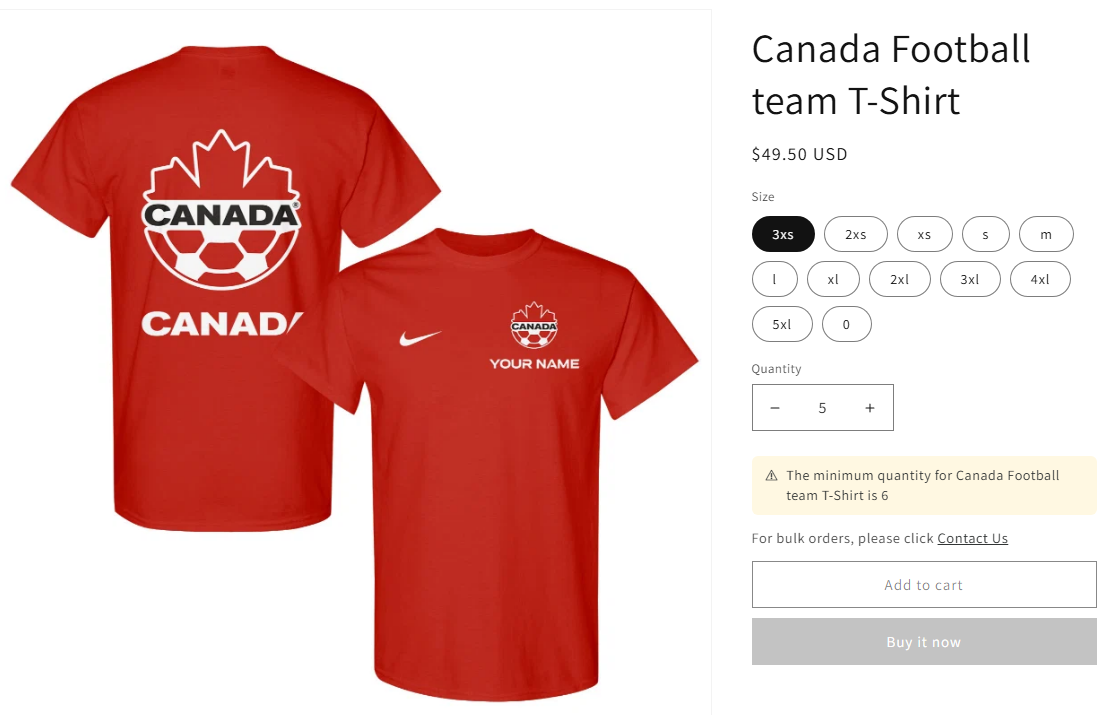
Every rule editor includes a Preview card in the right-hand column: a live, client-side simulation of how the rule behaves on a sample product page, updating instantly as you change conditions, messages or scope settings. It makes no backend calls, so there is no delay between editing a field and seeing the result.
A sample product with a price and a weight, and a quantity stepper you can adjust
The Applies to line, summarising your current scope, eligibility and country restrictions in plain language, for example "Collections (3), Wholesale customers, 2 countries"
The exact warning message that would show at the quantity you set, using your current conditions and message text
A disabled Add to cart button whenever the simulated quantity would be blocked, mirroring what a real shopper experiences
product
The Summary card is a second, plain-text readout
Directly below the Preview card sits a Summary card: a condensed, always-visible, plain-text version of the same rule, for a quick glance without stepping through the quantity simulator. It shows, in order:
Line | What it reads |
|---|---|
Name | The rule's name, or "New rule" until you name it |
Type and scope | For example "Quantity limit / Collections" |
Conditions | Your bounds as a single range, |
Eligibility and schedule | For example "Wholesale customers / Aug 10, 2026 to Sep 1, 2026" |
Enforcement | "Enforced in cart and checkout." or "Currently paused." |
Value ranges carry the currency symbol and weight ranges carry the unit, so a weight rule reads 100lb ≤ Weight ≤ 500lb rather than bare numbers.
Unlike the Preview card, the Summary card has nothing to interact with. It is read-only, it always reflects your current unsaved edits, and it does not change with Design page styling, since it is plain text inside the rule editor rather than the storefront message itself.
Use it while building a rule
Set your conditions first. Fill in the Conditions card, limit type and the minimum, maximum or multiple. The preview reacts immediately.
Adjust the quantity stepper. Use the minus and plus buttons, or type into the quantity field, to step through values above, at, and below your thresholds.
Confirm the message reads correctly. Watch the warning text that appears once a blocked quantity is reached. It is the same text, and the same language, you set in the Messages card, so it is the fastest way to proofread wording before it ever reaches a shopper.
Check the Applies to summary. Glance at that line to confirm your scope and eligibility match what you intended, without leaving the page.
Read the Summary card last. It is the fastest final check that the rule as a whole says what you meant, in particular that the condition range reads the way you expect and that the last line says the rule will actually be enforced.
What it does not simulate
Repurchase limits. These depend on real order history, so test them with a real test account and real prior orders.
Actual checkout blocking. The preview shows what would happen. The real enforcement is the Shopify Function at checkout, so always do one live storefront test after saving.
Design page styling. The preview reflects your rule's text and logic, not the colours and fonts. Check the Design page's own preview for those.